
How to show the Decline buttonUpdated a month ago
Why the Decline option is hidden
By default, the Cookease cookie consent banner shows Manage preferences and Accept, and keeps Decline hidden. You can change this from the Cookease theme settings in Shopify.
Turn on the Decline button in Shopify
1. Open cookease in Shopify - In your Shopify admin, go to Apps > Cookease, then select Enable Cookease in your theme.
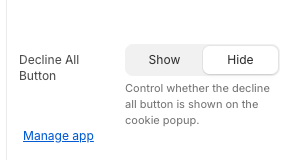
2. Find the decline button setting - Use the theme editor button shown in that area to navigate to the theme editor and locate the setting named Decline All Button. To find this specific setting, go to App Embeds and click on Cookease.

3. Set visibility to Show - Switch Decline All Button to Show. Once enabled, the banner will display a Decline button alongside Accept and Manage preferences.
What changes on the banner
When hidden (default): shoppers see Manage preferences and Accept.
When shown: shoppers also see Decline.
NOTE
If you don’t see the change immediately on your storefront, refresh the page and re-open the banner (or test in a private/incognito window).
